
When you open your phone or laptop to join the internet, you are greeted by a list of available connections. Each of those entries—”Home_Wi-Fi,” “Starbucks_Guest,” or “Linksys_5G”—is technically referred to as an SSID. Understanding the SSID meaning is the first step toward managing your home or office internet environment effectively.
At its core, an SSID, or Service Set Identifier, acts as the unique label for a wireless network. It is the name you see when you scan for available networks on your smartphone, tablet, or computer. Without this identifier, your hardware would have no way to distinguish between your neighbor’s connection and your own.
What Does SSID Actually Stand For?

The SSID meaning is derived from the term Service Set Identifier. In the technical specifications defined by the IEEE 802.11 standards, a “service set” refers to a group of wireless equipment that communicates with each other. The identifier is simply the alphanumeric label assigned to that group.
You can think of it as the “name tag” for your router. When your access point broadcasts its presence, it attaches this name to the signal so that your devices know exactly which signal to target when you attempt to connect.
This identification process is fundamental to how modern communication works in a world crowded with radio waves. Because there are thousands of signals bouncing around in a typical urban area, the network name ensures that your laptop doesn’t accidentally try to send data to a random printer or a stranger’s smart TV. It creates a logical boundary around your specific internet hardware, allowing your device to distinguish between the various signals it detects during the scanning process.
How SSIDs Work in Wireless Infrastructure
The mechanism behind the SSID is surprisingly simple yet highly effective. An access point (your router) continuously transmits a small packet of data known as a beacon.
This beacon frame contains the SSID information, along with other technical details about the network’s capabilities, such as the supported data rates and the band (2.4GHz or 5GHz) being used. By broadcasting this information, the router is essentially announcing, “I am here, and my name is X.”
When your phone or computer listens for these signals, it presents the names it finds in a list. When you click on one of these names, you are essentially telling your hardware to initiate a handshake with that specific service set.
This process confirms the identity of the network and allows the authentication phase—usually involving a password—to begin. Without the network ssid being broadcast, the device would not know which connection point to initiate a request with, effectively rendering the wireless signal invisible to casual users.
SSID Versus Wi-Fi Password
A common point of confusion for many network users is the distinction between the network name and the network security key. It is crucial to understand that the SSID is not the same as a password. The SSID is public information; it is designed to be seen by anyone within range of your signal.
Its primary purpose is identification, not security. Conversely, the password (or security key) is the gatekeeper that determines who is allowed to join the network once they have identified it.
Think of your wi-fi network like a private club. The SSID is the sign on the front door that tells you which club you are looking at. The password is the bouncer standing at the entrance.
Even if you know the name of the club, you cannot enter without the correct credentials. Many people mistakenly believe that hiding their SSID makes their network invisible and therefore secure. However, in reality, experienced users can still detect the traffic, and hiding the name merely makes it more difficult for legitimate users to join while providing minimal actual protection against determined intruders.
Rules for Naming Your Wireless Network
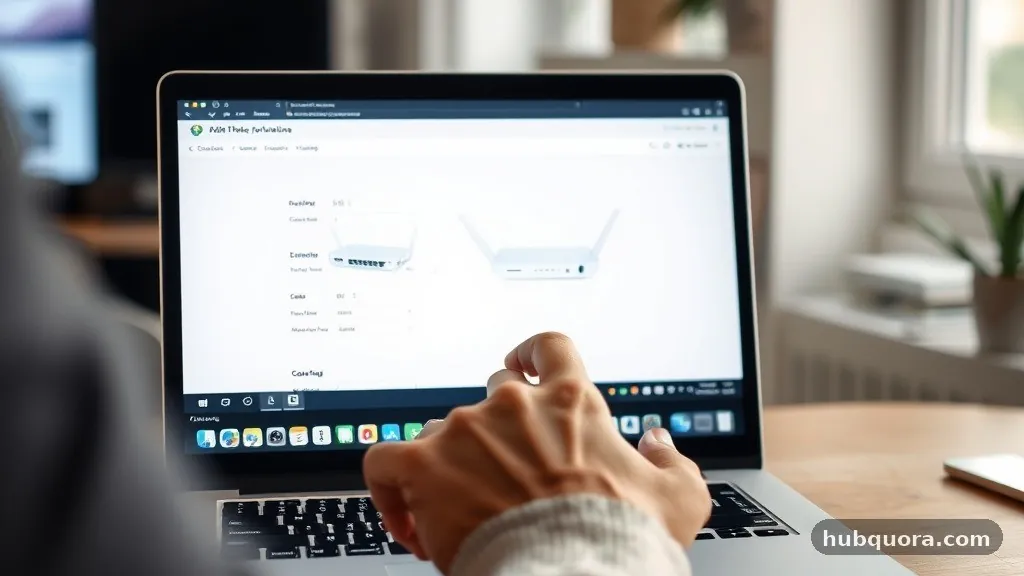
When you set up a new router, you are often prompted to choose a name. There are specific technical constraints you must follow for your name ssid to function correctly. Most systems allow a maximum length of 32 length characters.
This is a hard limit set by the industry standards. If you try to exceed this, your router will likely truncate the name or throw an error during the setup process.
Regarding the characters you can use, the standard allows for both letters numbers and various symbols. You can use alphanumeric characters to make the name unique. However, there are some best practices to keep in mind:
- Avoid using personally identifiable information like your home address or full name, as this can attract unwanted attention from passersby.
- Do not use special characters that might not be supported by older legacy devices, such as smart home hardware from a decade ago.
- Keep the name relatively short to ensure it displays correctly on small mobile screens.
- Avoid using the default name provided by your ISP, as this alerts potential attackers to the specific model of router you are using.
The Role of Default SSIDs in Security
Every router comes from the factory with a default ssid. This is often something generic, like “Linksys,” “Netgear,” or the specific model number of the hardware. Using the default name is a significant security risk.
It provides a roadmap for attackers, as they can search online for the known vulnerabilities associated with that specific router model. By simply changing the name wifi to something unique, you remove the first layer of information an attacker uses to profile your home network.
Furthermore, leaving the default name makes it difficult to distinguish your network from others if you live in a dense apartment building where five neighbors might be using the same router model. Changing the name is usually the first step in the “Quick Setup” guide for any new piece of networking hardware. It is a simple, effective change that improves the management of your networks and hardens your security posture slightly by making your hardware less conspicuous to people scanning the area for easy targets.
SSID Broadcasting and Hidden Networks
In some advanced settings, users choose to disable the broadcast of their SSID. This is often referred to as “hiding” the network. When you disable the beacon signal, your router stops announcing its name to the airwaves.
To join such a network, you must manually type the exact identifier name into your device. While this sounds like a clever way to keep your network private, it is widely considered “security through obscurity.”
It does not actually encrypt your traffic or prevent someone with a packet sniffer from discovering your network. In fact, some modern devices may experience connectivity issues or increased battery drain because they are constantly searching for a network that isn’t broadcasting its presence.
Additionally, many older devices may not support connecting to hidden networks at all. For most home and office environments, it is far better to focus on strong encryption—such as WPA3—rather than trying to hide the ssid service.
Technical Specifications of Network Identifiers
To understand the technical side of the SSID meaning, it helps to look at the data structure. The SSID is a variable-length string of 0 to 32 bytes.
When the length is 0, the SSID is known as a “wildcard SSID,” which is sometimes used in probe requests when a device is looking for any available network to join. This is why your phone can connect to public hotspots automatically; it sends out a probe request asking for any compatible service set to respond.
The following table summarizes the key attributes of a typical wireless identifier:
| Attribute | Description |
|---|---|
| Length Limit | Maximum of 32 bytes (usually 32 characters) |
| Character Set | Case-sensitive, supports alphanumeric and symbols |
| Broadcast Status | Can be toggled between visible and hidden |
| Function | Logical identification of a wireless access point |
How to Locate Your SSID
If you need to find your router ssid to connect a new device, the process is straightforward. For most users, this simply involves opening the Wi-Fi settings menu on your phone or computer. The list that populates is a real-time view of all the ssids currently within range.
If you are the network administrator and have forgotten the name, you can usually find it printed on a sticker on the bottom or back of the router itself. This sticker often contains the default ssid and the default password.
If you have changed the name and forgotten it, you will need to log into the router’s administrative interface. This is typically done by typing the router’s IP address (often 192.168.1.1 or 192.168.0.1) into a web browser.
Once you are logged in, you can find the wireless settings tab, where the current network name will be clearly displayed. This interface is also where you can change the name, update your password, or adjust the band settings to optimize your connection.
Addressing Topical Gaps: SSID in Specialized Contexts
Beyond the standard home usage, there are specific contexts where the SSID meaning carries different implications. For instance, in educational or corporate environments, you might see multiple SSIDs coming from a single physical piece of hardware. This is called a “Multiple SSID” configuration.
An IT department might broadcast one SSID for staff, one for students or guests, and one for internal IoT devices. Each of these networks can have different security protocols, bandwidth limits, and access permissions, even though they are all passing through the same physical router.
Another common gap in understanding involves the relationship between SSIDs and roaming. In large buildings with multiple access points, the network administrator will often set the same SSID across all of them. This allows your device to “roam” from one access point to another without dropping the connection.
Your phone sees the same network name and assumes it is the same network, so it seamlessly switches to the access point with the strongest signal as you move throughout the building. This is a vital component of modern mesh Wi-Fi systems and enterprise-grade wireless infrastructure.
Common Troubleshooting Steps for Network Connections
If you are having trouble connecting to your network, the SSID is often the first place to look. Sometimes, a router might stop broadcasting its beacon due to a firmware glitch, or the router might be set to a frequency band that your device doesn’t support. For example, if your router is set to broadcast only on the 5GHz band and your older laptop only supports 2.4GHz, you will never see the network ssid in your list.
If you cannot find your network, try the following steps:
- Check if the router’s power light is solid and not flashing, indicating a stable connection.
- Move your device closer to the router to ensure you are within range.
- Toggle the Wi-Fi on your device off and on again to force a new scan.
- Check if other devices in the house can see the network; if they can’t, the router may need a restart.
- Verify that the router is not set to a hidden mode or that it hasn’t defaulted to a different band configuration.
For more detailed technical documentation on how wireless standards interact, you can visit the official website of the IEEE, which governs the protocols that make wireless communication possible. By adhering to these global standards, manufacturers ensure that your smartphone can connect to a router regardless of the brand or the country of origin.
Frequently Asked Questions
Is the SSID the same as the Wi-Fi password?
No. The SSID is the public name of your network, which you select from a list to identify it. The password is the private security key required to gain access to that network once you have selected the correct name from the list.
Why do I see multiple SSIDs for the same router?
Modern routers often support dual-band or tri-band technology, broadcasting separate signals for the 2.4GHz and 5GHz frequencies. Each of these bands may have its own SSID. Some routers also support “Guest” networks, which create an additional, isolated SSID for visitors to use.
Can I change my SSID whenever I want?
Yes, you can change your network name at any time by accessing your router’s administrative dashboard through a web browser. Once you change it, all devices currently connected to the old name will be disconnected and will need to be re-authenticated using the new name.
What happens if I hide my SSID?
Hiding your SSID prevents the router from broadcasting its name in the beacon frame. While this makes the network invisible in simple lists, it does not prevent determined individuals from finding it using specialized software. It can also cause connection issues with some older or budget-friendly devices.

James Wilson is the founder and lead editor of HubQuora.com, where he covers the latest celebrity news, entertainment trends, viral gossip, and net worth stories. With a passion for pop culture and digital media, James delivers engaging, accurate, and up-to-date content that keeps readers informed about the world of celebrities, influencers, and entertainment industry buzz.